
Practice English Interviews on Your Phone: Add Mocky to Your Home Screen
Practice during your commute or lunch break. Full mobile guide: adding Mocky to your iPhone or Android home screen, microphone permission setup, voice quality notes, and three high-leverage mobile practice routines.

Mocky.pro
Published on 2026-07-23
You do not need an app store download to practice interviews on your phone: open mocky.pro in Safari (iPhone) or Chrome (Android), tap "Add to Home Screen", and Mocky opens full-screen like a native app. Allow the microphone once, and every commute or lunch break becomes practice time.
The biggest enemy of interview prep is never finding a solid block of time. Speaking practice does not need one — a behavioral answer takes 60 to 90 seconds, which fits between two subway stops. Here is the full mobile setup.
How Do You Add Mocky to Your Home Screen?
iPhone (Safari)
- Open mocky.pro in Safari
- Tap the Share button (square with an arrow) in the bottom toolbar
- Scroll down and tap Add to Home Screen
- Confirm the name — Mocky now launches full-screen from your home screen
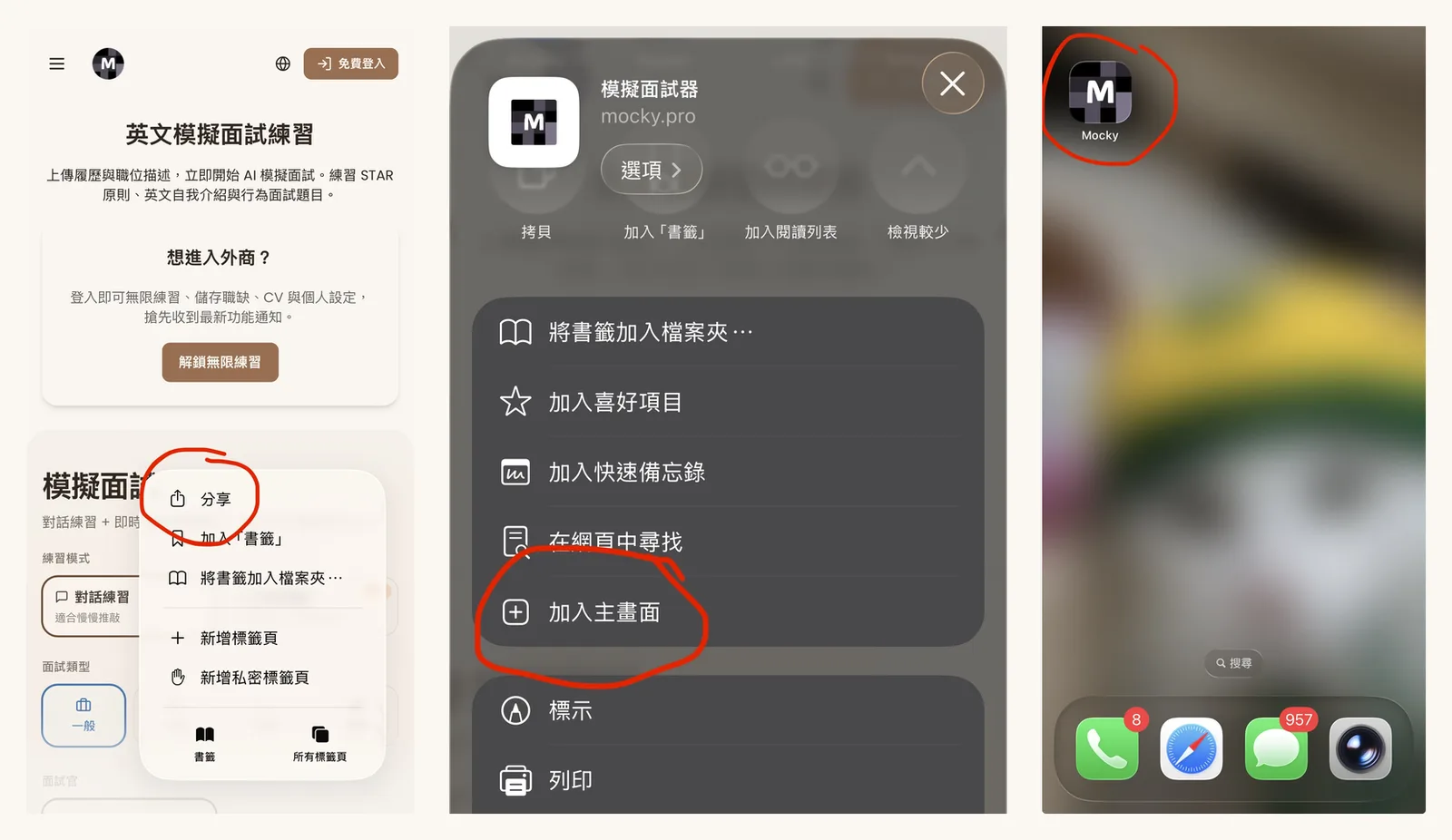
Android (Chrome)
- Open mocky.pro in Chrome
- Tap the ⋮ menu in the top right
- Tap Add to Home screen (some devices show an Install prompt directly)
- Confirm — the icon behaves like an app
Current as of July 2026. Menu wording varies slightly across OS versions.
Setting Up the Microphone
The first time you tap record, the browser asks for microphone access — tap Allow and it will not ask again.
If you accidentally denied it:
- iPhone: Settings → Safari → Microphone → Allow
- Android: tap the lock icon in Chrome's address bar → Permissions → Microphone → Allow
Is Phone Practice as Good as Desktop?
Recording, AI scoring, and transcripts are fully supported on mobile. Two practical differences:
- Reviewing transcripts is more comfortable on a big screen — use the phone for speaking reps, the desktop for deep review
- Background noise hurts transcription quality; earphones with a mic help a lot
In July 2026 we fixed an iOS Safari issue where the tail end of recordings could be cut off. iPhone voice quality now matches desktop — if you previously saw failed transcriptions on mobile, it is worth another try.
Three High-Leverage Mobile Routines
Commute: the Daily Challenge. One question a day, 60 seconds to answer, instant AI scoring — designed exactly for in-between moments.
Lunch break: one deep question. Pick one real reported question from the company question banks and drill it until you can answer without notes.
Before bed: review today's transcript. Swap doom-scrolling for scrolling your own practice transcript — mark the filler words, retry the question tomorrow.
FAQ
Q: Is Mocky on the App Store? Not currently, but after Add to Home Screen, Mocky opens in a full-screen standalone window — nearly identical to a native app, always up to date, no installs.
Q: Recording keeps failing on my phone — what should I check? Confirm microphone permission is allowed (Settings → Safari → Microphone). Corporate or school networks sometimes block audio uploads — try mobile data. If it persists, reply to any of our emails and we will look into it.
Q: Do I stay logged in after adding to the home screen? Login state is shared with your browser. Sign in once with Google and it persists.
Q: Does Live real-time mode work on mobile? Yes. Use earphones for the best real-time conversation experience, and a stable network.
Add Mocky to your home screen tonight, and pull today's challenge on tomorrow's commute — speaking fluency compounds one question a day.